

UI Code Generator
Flex Layout Generator
Flex Layout Generator
The CSS Flexbox layout generator is a visual, interactive tool designed to build responsive web page layouts across various screen sizes. To begin, you can adjust different properties and instantly observe their immediate impact on element arrangement. For instance, you can easily design dynamic navigation bars or responsive product cards for e-commerce sites. Consequently, this real-time visual feedback allows you to rapidly iterate on your UI designs. Ultimately, the tool completely eliminates the need to write complex CSS code manually, which means no programming experience is required to build modern layouts.
Flex Layout Generator


Oops!
No flex items found.
Start creating some.
CSS
HTML
DETAILS EXPLAINED**
Introduction
CSS 2.1 defined four layout modes — algorithms which determine the size and position of boxes based on their relationships with their sibling and ancestor boxes:
- block layout, designed for laying out documents
- inline layout, designed for laying out text
- table layout, designed for laying out 2D data in a tabular format
- positioned layout, designed for very explicit positioning without much regard for other elements in the document
This module introduces a new layout mode, flex layout, which is designed for laying out more complex applications and webpages.
What is Flex layout?
Superficially, the CSS Flexbox layout model appears quite similar to traditional block layout. However, it completely lacks many of the complex, document-centric properties found in block layouts, such as floats and multi-column designs. In return, Flexbox introduces simple yet powerful tools specifically designed for distributing space and aligning content. Consequently, these specialized features provide the exact responsiveness that modern web applications and intricate layouts require, thereby streamlining the overall UI development process.
The contents of a flex container:
- can be laid out in any flow direction (leftwards, rightwards, downwards, or even upwards!)
- can have their display order reversed or ‘order|rearranged’ at the style layer (i.e., visual order can be independent of source and speech order)
- can be laid out linearly along a single (main) axis or wrapped into multiple lines along a secondary (cross) axis
- can “flex” their sizes to respond to the available space
- can be aligned with respect to their container or each other on the secondary (cross)
- can be dynamically collapsed or uncollapsed along the main axis while preserving the container’s cross size
Flex Layout Box Model and Terminology
By definition, a CSS flex container is the parent box generated by an element with a computed value of display: flex or display: inline-flex. Specifically, all in-flow children of this container instantly become flex items. Consequently, these child elements are laid out dynamically using the core rules of the flex layout model. In other words, establishing the parent container automatically dictates how its immediate child elements behave on the webpage
Unlike block and inline layouts, which bias their calculations toward block and inline flow directions, CSS flex layout biases its calculations toward specific flex directions. Therefore, to make it easier to understand this layout model, this section defines a core set of flex flow–relative terms. Specifically, variables like the flex-flow property and the document’s writing-mode determine exactly how these terms map to physical coordinates. Consequently, these settings dictate the layout’s physical directions, axes, and sizes on a user’s screen
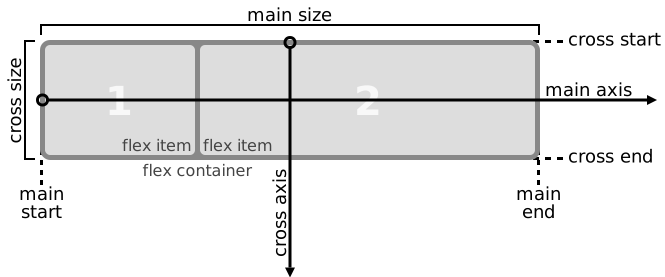
An illustration of the various directions and sizing terms as applied to a row flex container.
main axis
main dimension
The main axis of a flex container is the primary axis along which flex items are laid out. It extends in the main dimension.
main-start
main-end
The flex items are placed within the container starting on the main-start side and going toward the main-end side.
main size
main size property
By definition, the main size of a CSS flex container or flex item refers directly to its width or height, depending on whichever value aligns with the current main dimension. Correspondingly, its main size property is driven by either the standard width or height property. Likewise, its minimum and maximum constraints are controlled by the min-width/max-width or min-height/max-height properties. Consequently, these specific settings dictate the exact minimum and maximum main size limits of your layout components on the screen.
In flex layout, the main size is controlled by the flex property rather than directly by the main size property.
NOTE:
This means any references to a flex item’s used size in the main dimension (width, height, inline size, block size) refers to its post-flexing main size.
cross axis
cross dimension
The axis perpendicular to the main axis is called the cross axis. It extends in the cross dimension.
cross-start
cross-end
Flex lines are filled with items and placed into the container starting on the cross-start side of the flex container and going toward the cross-end side.
cross size
cross size property
In contrast, the cross size of a CSS flex container or flex item refers directly to its width or height, depending on whichever value falls within the cross dimension. Accordingly, its cross size property is controlled by either the standard width or height rule. Likewise, its minimum and maximum constraints are driven by the min-width/max-width or min-height/max-height properties. Consequently, these specific structural declarations determine the exact min/max cross size boundaries of your web elements
What is a Flex Container?
A flex container establishes a new flex formatting context for its contents. This process mirrors establishing a block formatting context, but uses flex layout instead of block layout. For example, floats do not intrude into the flex container, and the flex container’s margins do not collapse with the margins of its contents. Flex containers form a containing block for their contents exactly like block containers do. The overflow property applies to flex containers.
Flex Container Properties:
displayThis defines a flex container—inline or block.
- flex: This value causes an element to generate a flex container box that is block-level when placed in flow layout.
- inline-flex: This value causes an element to generate a flex container box that is inline-level when placed in flow layout.
flex-directionThe flex-direction property specifies how the container places flex items by setting the direction of its main axis. This axis determines how the items flow within the layout.
- row: The flex container’s main axis has the same orientation as the inline axis of the current writing mode. The main-start and main-end directions are equivalent to the inline-start and inline-end directions, respectively, of the current writing mode.
- row-reverse: Same as row, except the main-start and main-end directions are swapped.
- column: The flex container’s main axis has the same orientation as the block axis of the current writing mode. The main-start and main-end directions are equivalent to the block-start and block-end directions, respectively, of the current writing mode.
- column-reverse: Same as column, except the main-start and main-end directions are swapped.
flex-wrapThe flex-wrap property controls whether the flex container is single-line or multi-line, and the direction of the cross-axis, which determines the direction new lines are stacked in.
- nowrap: The flex container is single-line.
- wrap: The flex container is multi-line.
- wrap-reverse: Same as wrap.
- column-reverse: Same as column, except the main-start and main-end directions are swapped.
For the values that are not wrap-reverse, the cross-start direction is equivalent to either the inline-start or block-start direction of the current writing mode (whichever is in the cross axis) and the cross-end direction is the opposite direction of cross-start. When flex-wrap is wrap-reverse, the cross-start and cross-end directions are swapped.
NOTE:
Depending on the value of align-content, the wrap-reverse value of flex-wrap can alter the initial scroll position on flex containers that are also scroll containers.
flex-rowThe flex-flow property is a shorthand for setting the flex-direction and flex-wrap properties, which together define the flex container’s main and cross axes.
- row: Initial value. Main-axis is inline, no wrapping. (Items will either shrink to fit or overflow)
- column wrap: Main-axis is block-direction (top to bottom) and lines wrap in the inline direction (rightwards).
- row-reverse wrap-reverse: Main-axis is the opposite of inline direction (right to left). New lines wrap upwards.
justify-contentThe justify-content property aligns flex items along the main axis of the flex container’s current line. The browser applies this alignment after resolving any flexible lengths and auto margins. Typically, the property helps distribute extra free space when items on a line are inflexible, or when flexible items reach their maximum size. It also controls item alignment when elements overflow the line.
- flex-start: The container packs flex items toward the start of the line. The browser aligns the main-start margin edge of the first flex item flush with the line’s main-start edge, then positions each subsequent flex item flush with the preceding item.
- flex-end: The container packs flex items toward the end of the line. The browser aligns the main-end margin edge of the last flex item flush with the line’s main-end edge, then positions each preceding flex item flush with the subsequent item.
- center: The container packs flex items toward the center of the line. The browser positions the flex items flush with each other and centers them on the line, leaving equal space between the line’s main-start edge and the first item, and between the main-end edge and the last item. (If negative free space occurs, items overflow equally in both directions.)
- space-between: The browser distributes flex items evenly across the line. If negative free space occurs or only a single flex item exists on the line, this value falls back to safe flex-start. Otherwise, the container places the first item’s main-start margin edge flush with the line’s main-start edge, and the last item’s main-end margin edge flush with the line’s main-end edge. The remaining items then distribute themselves with equal spacing between any two adjacent elements.
- space-around: The browser distributes flex items evenly across the line, adding half-size spaces at both ends. If negative free space occurs or only a single item exists on the line, this value falls back to safe center. Otherwise, the container arranges the items with equal spacing between any two adjacent elements, while setting the space between the outer items and the container edges to exactly half that size.
align-itemsThis defines the default behavior regarding how flex items are arranged along the cross axis within the current line.
- stretch (default): Flex items are packed toward the start of the line. The main-start margin edge of the first flex item on the line is placed flush with the main-start edge of the line, and each subsequent flex item is placed flush with the preceding item.
- flex-start / start / self-start: The elements are positioned at the start of the cross axis. The difference between the two is subtle and lies in whether they adhere to the rules of
flex-directionor the rules ofwriting-mode. - flex-end / end / self-end: Items are placed at the end of the cross-axis. The difference, again is subtle and is about respecting flex-direction rules vs. writing-mode rules.
- center: items are centered in the cross-axis.
- baseline: Items are aligned such as their baselines align.
align-contentThis aligns a flex container’s lines within when there is extra space in the cross-axis, similar to how justify-content aligns individual items within the main-axis.
- normal (default): items are packed in their default position as if no value was set.
- flex-start / start: items packed to the start of the container. The (more supported)
flex-starthonors theflex-directionwhilestarthonors thewriting-modedirection. - flex-end / end: items packed to the end of the container. The (more support)
flex-endhonors theflex-directionwhile end honors thewriting-modedirection. - center: items centered in the container
- space-between: items evenly distributed; the first line is at the start of the container while the last one is at the end.
- space-around: items evenly distributed with equal space around each line.
- space-evenly: items are evenly distributed with equal space around them.
- stretch: lines stretch to take up the remaining space.
What is a Flex Item?
Loosely speaking, the flex items of a flex container are boxes representing its in-flow contents.
Every in-flow child of a flex container becomes a flex item, and the browser wraps each child text sequence in an anonymous block container flex item. However, if the entire text sequence contains only document whitespace characters (which the white-space property can affect), the engine drops it from rendering entirely, treating the text nodes exactly like display: none.
Flex Item Properties:
orderDevelopers use the order property to rearrange flex items into an order-modified document order. This shifts their spatial arrangement on the 2D visual canvas away from their logical order in linear presentations like speech and sequential navigation.
flex-growThe flex-grow property defines a flex item’s ability to expand when necessary. It accepts a unitless value that acts as a proportion, which determines the exact amount of available container space the item should occupy.
If developers set all items to flex-grow: 1, the container distributes the remaining space equally among all children. If one child carries a value of 2, that element claims twice as much available space as the other items.
flex-shrinkThis defines the ability for a flex item to shrink if necessary.
flex-basisThe flex-basis property defines an element’s default size before the container distributes the remaining space. Developers can specify this value as a length (such as 20% or 5rem) or a dedicated sizing keyword. The auto keyword tells the browser to look at the element’s direct width or height property. Alternatively, the content keyword sizes the item strictly based on its automatic inner text and element sizing. Modern browsers also fully support related content keywords, including max-content, min-content, and fit-content, to provide precise intrinsic size boundaries.
flexThe flex property serves as the shorthand for combining flex-grow, flex-shrink, and flex-basis. The property treats the second and third parameters (flex-shrink and flex-basis) as optional. While the default behavior enforces a layout of 0 1 auto, defining a single unitless value—such as flex: 5;—automatically shifts the flex-basis to 0%. This single declaration mirrors the explicit rule of setting flex-grow: 5; flex-shrink: 1; flex-basis: 0%;
align-selfThe align-self property overrides the default container alignment (or the rule specified by align-items) for individual flex items.
Copyright © 2023 World Wide Web Consortium. This work is published under the W3C Document License.
You must be logged in to post a comment.